Add a vaccination event once, and PetSense handles the repeat schedule and reminders automatically. Here is how it works.
Keeping track of which vaccines are due, and when, is harder than it sounds. Different vaccines repeat on different cycles, and it is easy to lose track between annual vet visits. PetSense keeps the full schedule in one place and reminds you before anything is due.
Adding a vaccination: step by step
1
Open the add menu
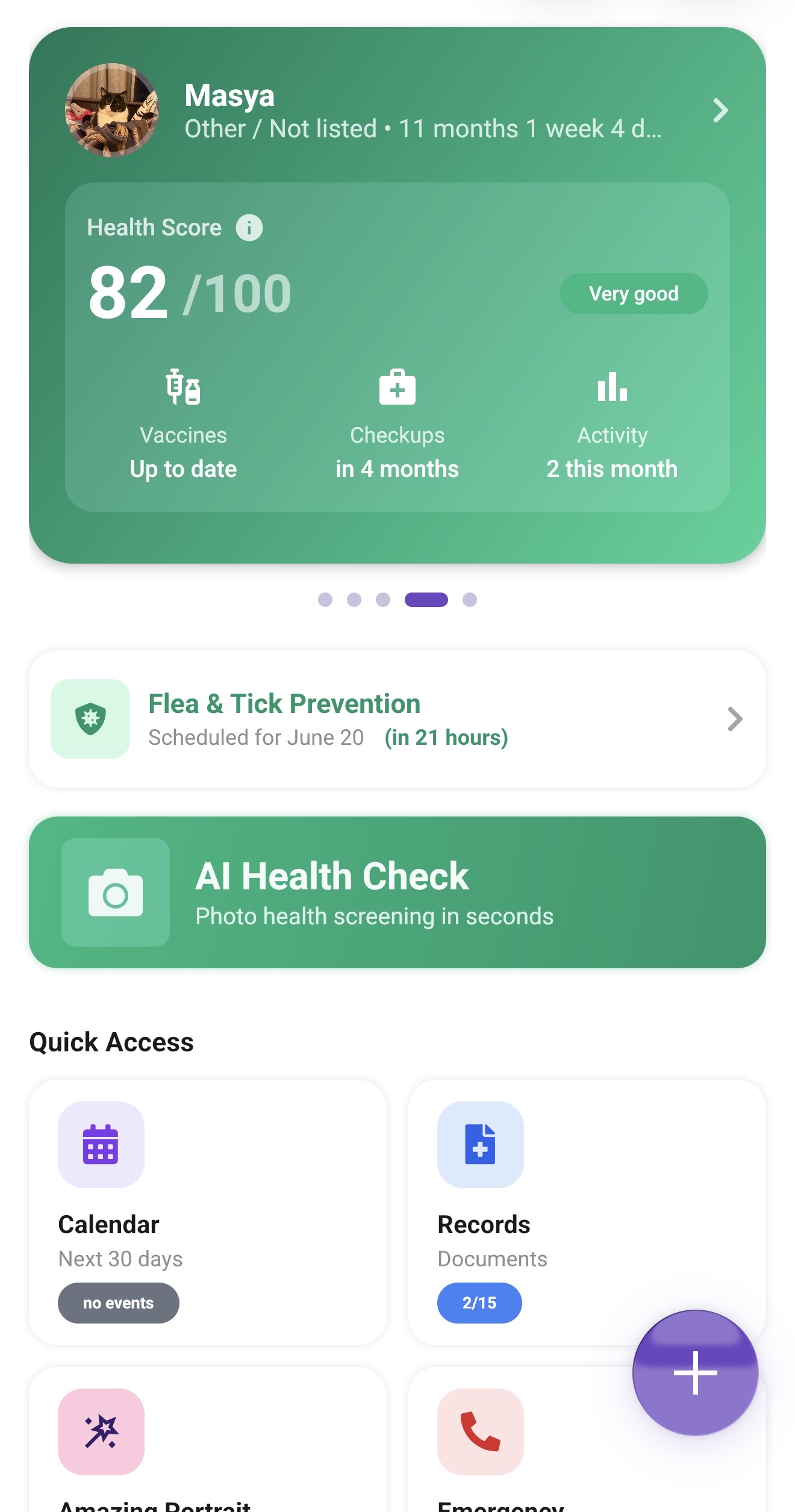
Tap the purple
+ button in the bottom-right corner of the dashboard. A sheet opens with options for your pet.
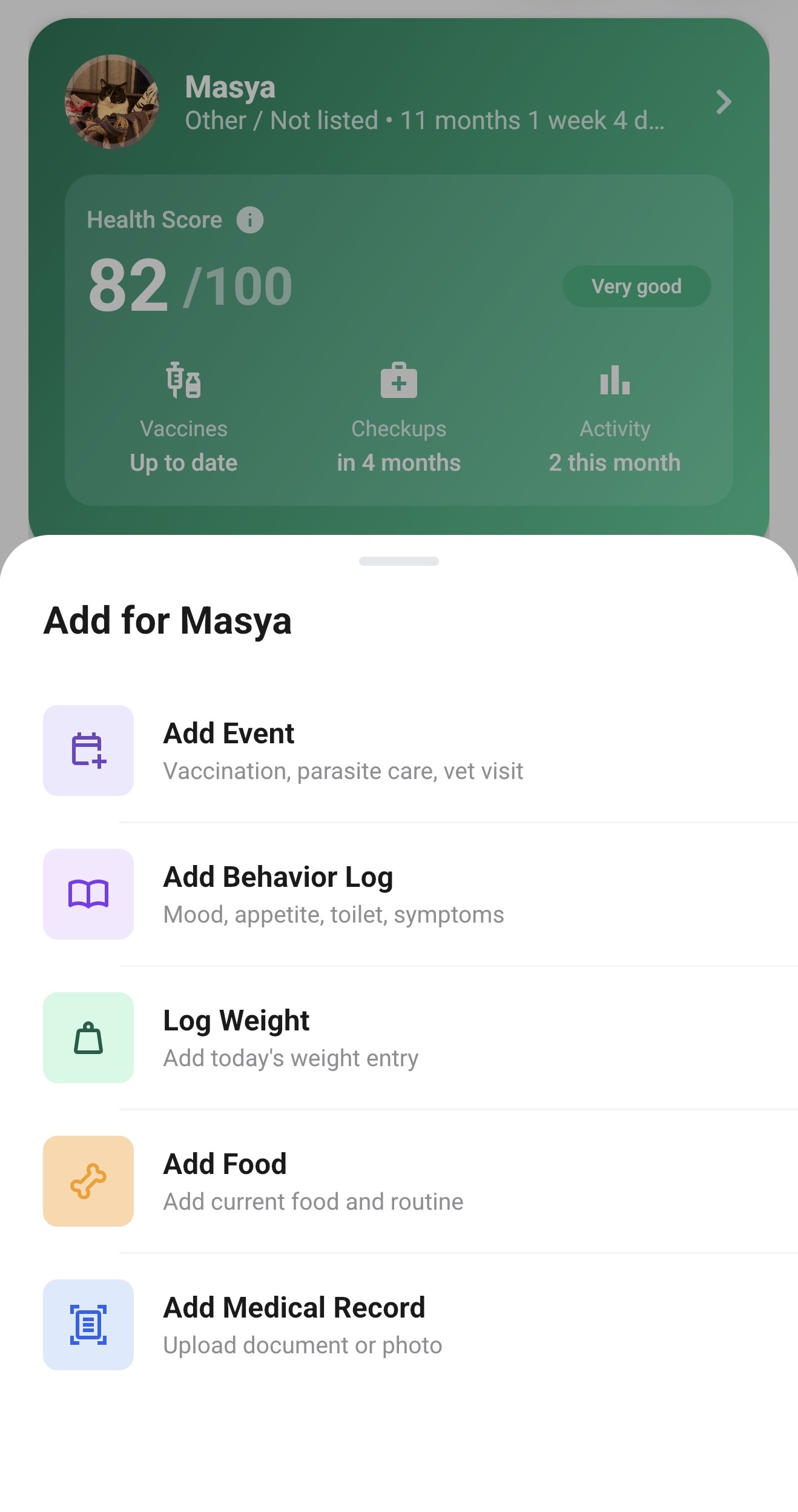
Tap Add Event - Vaccination, parasite care, vet visit
2
Tap "Add Event" then select Vaccination
In the sheet that opens, tap
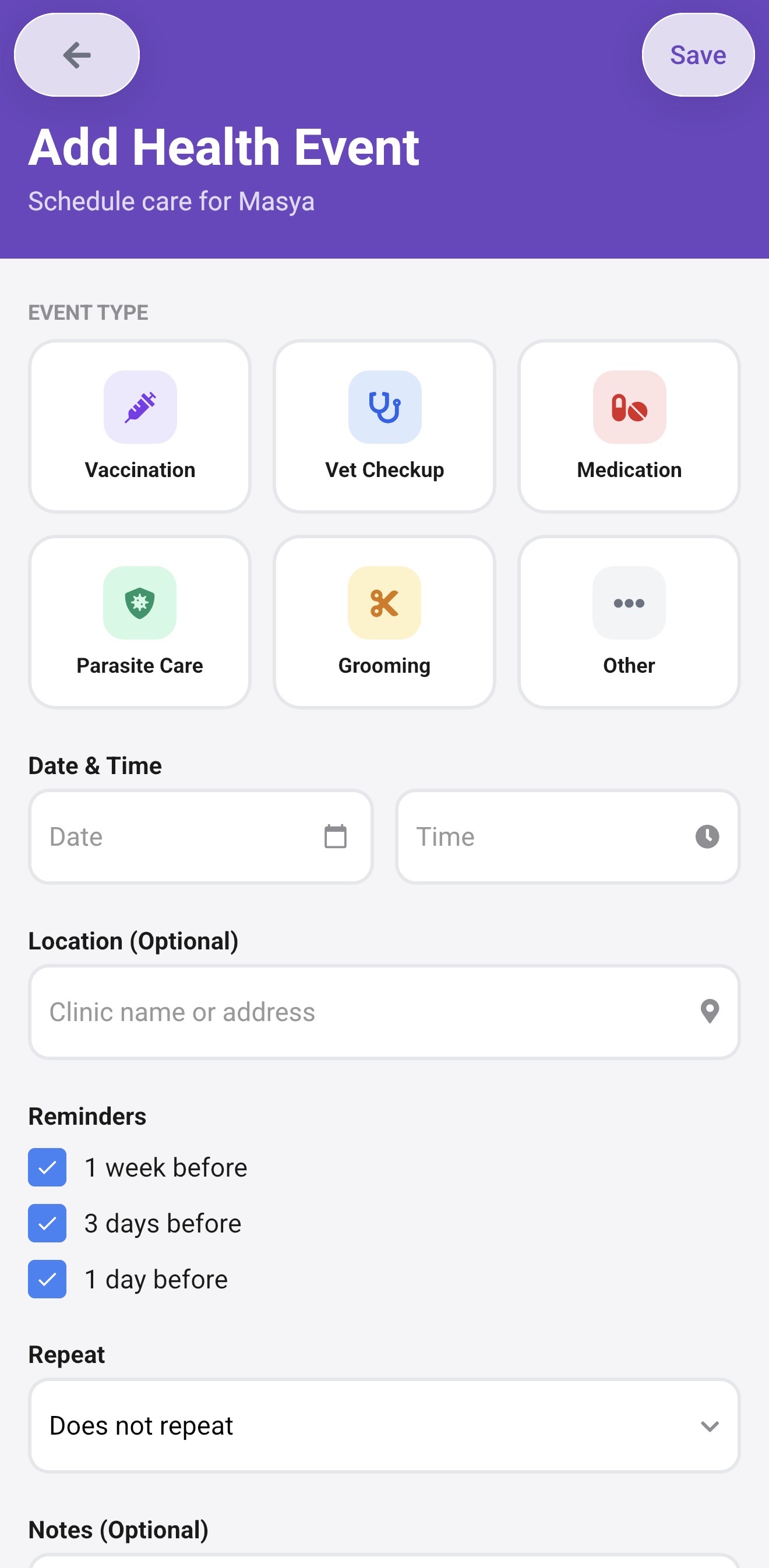
Add Event. On the next screen, select
Vaccination as the event type. The form expands to show vaccines specific to your pet's species.
PetSense shows vaccine options based on your pet's species. For dogs, you may see DHPP Vaccine and Rabies Vaccine. For cats, you may see FVRCP Vaccine, Rabies Vaccine, and FeLV Vaccine.
3
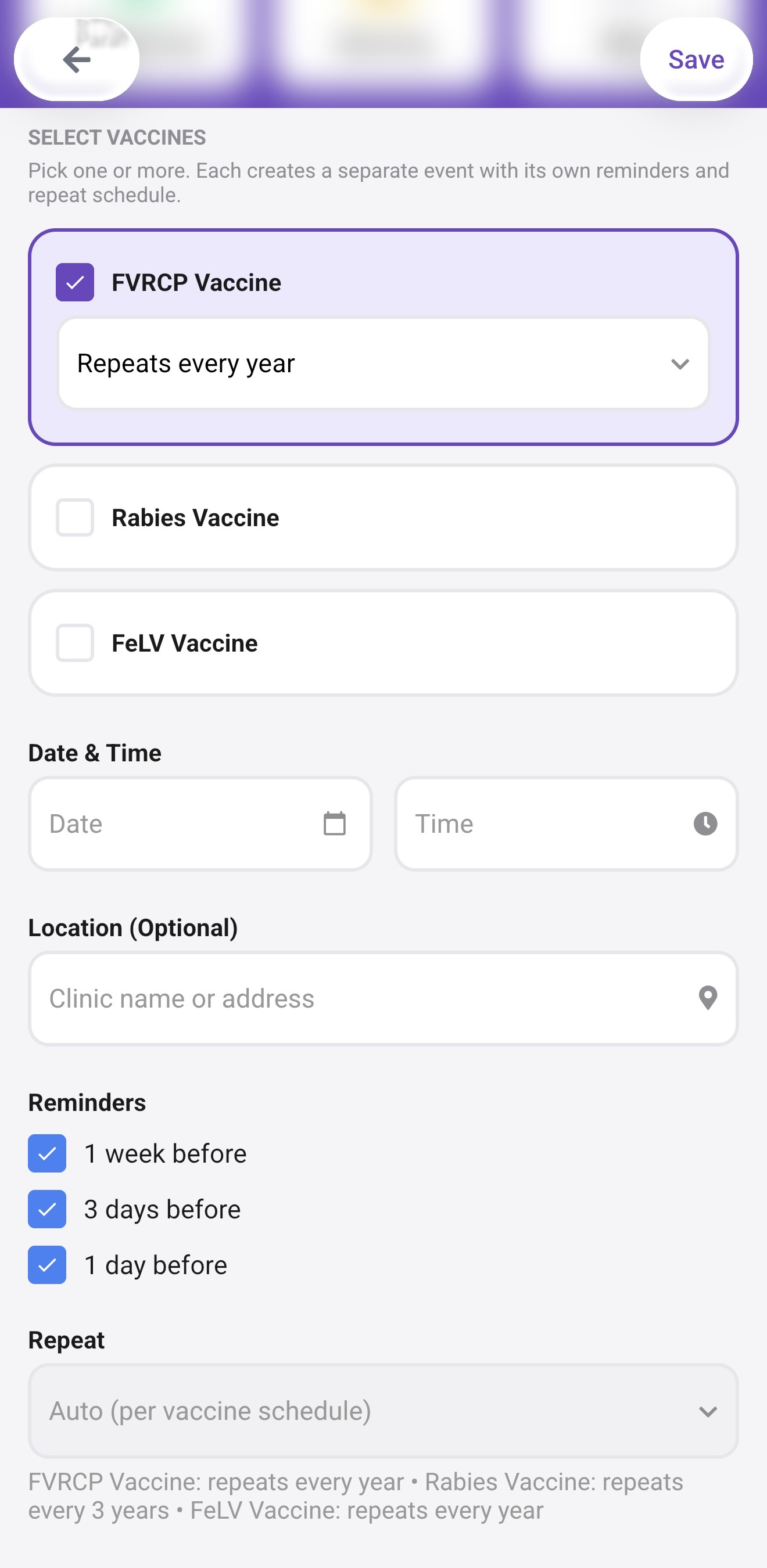
Select one or more vaccines
Tick the vaccines that apply. You can select multiple at once - each one will become a separate event with its own repeat cycle.
DHPP Vaccine
Rabies Vaccine
The repeat interval is set automatically: Rabies repeats every 3 years after the initial booster; DHPP every 3 years after confirmed immunity. You can adjust this if your vet recommends a different interval.
4
Choose your vaccines and set the date
Tick the vaccines that apply, then enter the date they were given or when they are due. If logging a past vaccination, use the actual date - PetSense uses this to calculate the next due date.
Time is optional. Location (clinic name or address) is optional but useful to have on record for vet visits.
5
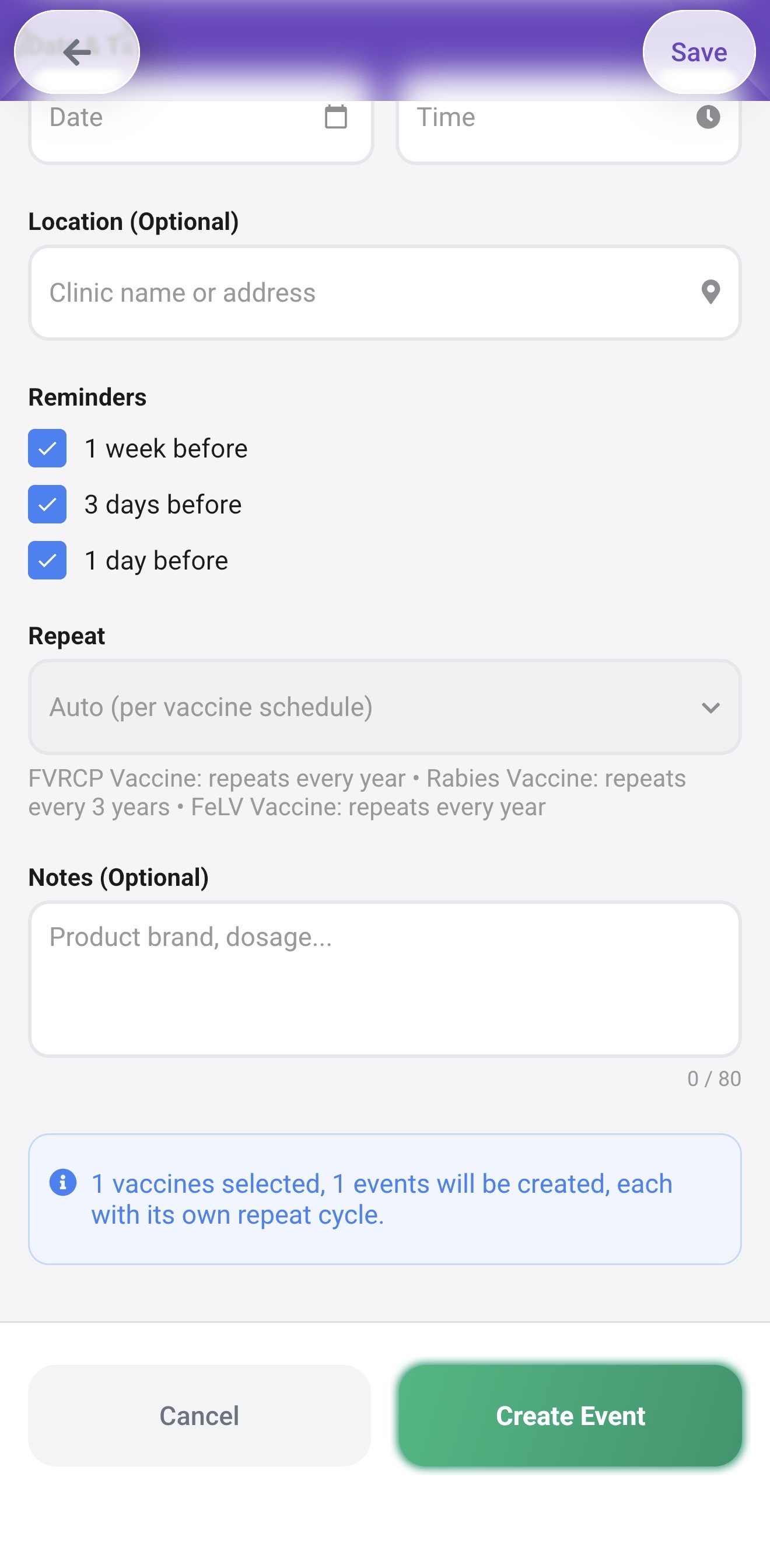
Review reminders and repeat
By default, PetSense sends reminders
1 week before,
3 days before, and
1 day before the due date. You can turn off any of these. The repeat interval is pre-filled based on the vaccine selected.
If you selected multiple vaccines, the repeat field shows Auto (per vaccine schedule). Each vaccine follows its own cycle independently.
6
Add notes (optional) and tap Create Event
The Notes field accepts up to 80 characters. Use it for the product brand, dosage, or the name of the vet who administered it. Then tap Create Event.
What happens after you save
Each vaccine becomes a separate event on your pet's Health Calendar. PetSense uses the date you entered to calculate the next due date and schedules reminders automatically. You will see the vaccine status reflected in your pet's Health Score under the Vaccinations category.
- The event appears on the dashboard under Today's Priority when it is due or coming up soon
- Reminders arrive as push notifications 1 week, 3 days, and 1 day before the due date
- The Health Score updates to reflect whether vaccinations are current or overdue
- Past vaccination events stay in your pet's history, which you can share with a vet
Logging a vaccination your pet already had
If your pet is already vaccinated and you want to bring their records into PetSense, follow the same steps but enter the date the last vaccination was given. PetSense will calculate the next due date from there and set up reminders going forward.
If you are not sure of the exact date, use the month and year from the vaccination certificate, or ask your vet to confirm the record.
Not sure which vaccines to add?
Start with the core vaccines for your pet's species, then add any lifestyle-based vaccines your vet recommends. For dogs, the dog vaccination schedule guide covers common core and non-core vaccines across Europe. For cats, the cat vaccination schedule guide explains kitten timing, indoor vs outdoor needs, and country differences.
Ready to set up your pet's vaccine schedule?
Download PetSense and add your first vaccination in under a minute.
Download the app